Getting Started
Before installation
Before installing SWYH, make sure your system meets the following requirements:
- Windows Vista, 7, or 8 (x86 or x64)
- .NET Framework 4.0 installed
Then download the latest release of SWYH.
Installation
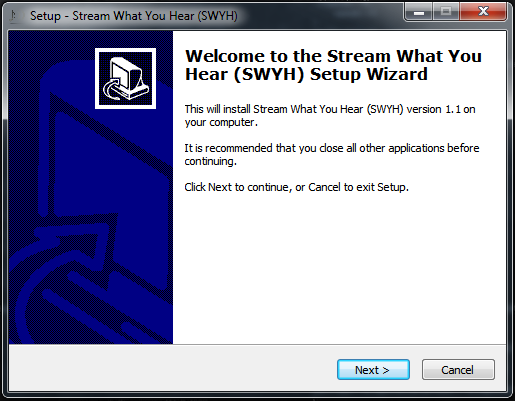
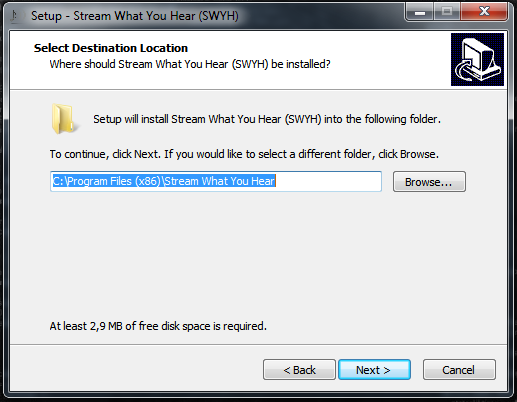
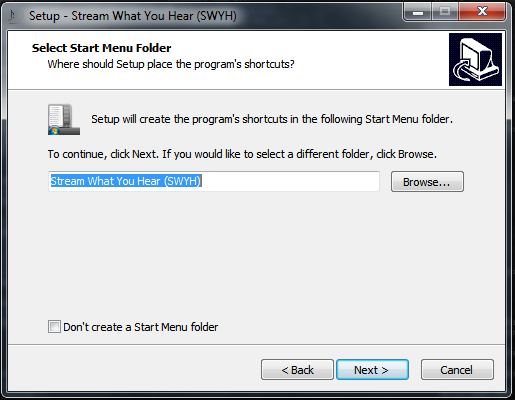
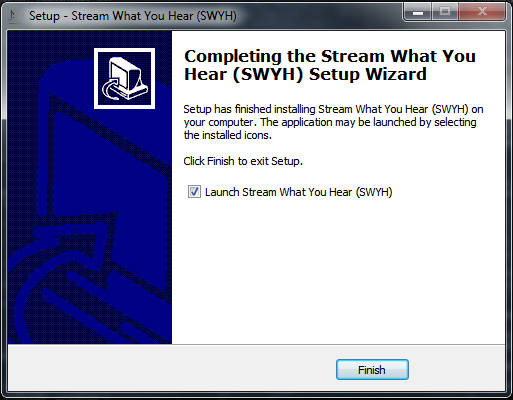
- Simply run the downloaded installer and follow the installation wizard.


Start SWYH
- From the Start Menu, launch Stream What You Hear (SWYH).

- Once started, SWYH runs in the system tray. Right-click on the tray icon to open the main menu.
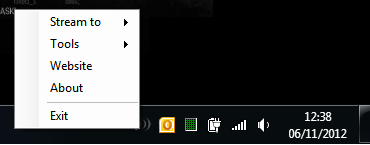
Stream your computer audio
If your device is an UPnP/DLNA Media Renderer
-
- Right-click the SWYH system tray icon
- Open the “Stream to” menu
- Select your device
- Wait a few seconds for the stream to start
Note : By default, SWYH streams audio in MP3 format.
You can switch to PCM/L16 in the Settings if required.

⚠ Xbox 360 users must use PCM/L16 format.
If your device is an UPnP/DLNA Media Player
Some devices cannot be controlled remotely and must be started manually.
- On your device, browse available DLNA/UPnP media servers
- Select “Stream What You Hear”
- Open the Music folder (or browse by Artist/Album)
- Play the track named “Stream What You Hear”
Example: using Windows Media Player on another computer.

If your device does not support DLNA
- Open the menu Tools > HTTP Live Streaming
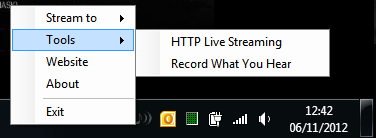
- Copy the provided HTTP streaming URL
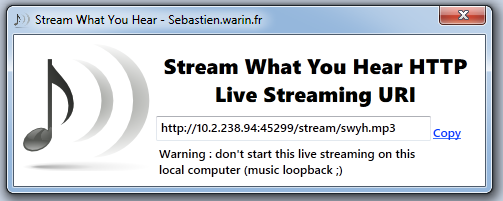
- Open this URL on any compatible device or media player
Record What You Hear
SWYH can also record your system audio to a file.
- Open Tools > Record What You Hear
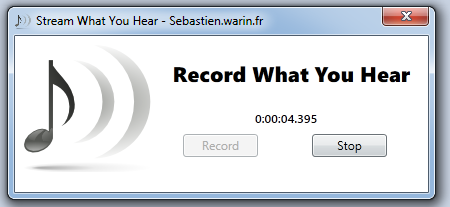
- Click Record to start recording
- Click Stop to save the MP3 file
0 Comments on “Getting Started”